Articles
How to Make Your Cleaning Company's Booking Page Look Like Your Brand

You can now customize how your Allclean booking page looks: your colors, the corner style, how the category cards look and which pictures they use. Pick two colors and Allclean works out the rest, including text that stays readable. It takes about five minutes, and you see the real page update while you click.
Why we built it
This one came straight from you. Over the last few months a lot of cleaning company owners asked us the same thing, in different words: "Can the booking page look like my website?"
It's a fair ask. Someone lands on your site, sees your logo and your colors, likes what they see and hits "Book now". Then the page changes on them. Different colors, different feel. Some people shrug. Some stop and wonder if they clicked the wrong link, and that's right when you're about to ask for their address and card.
It also isn't a page people see once. Customers come back to it every time they rebook, check a visit or open a receipt. So it should feel like yours.
What you can customize
Everything is in Settings → Booking page, under Appearance.
Start with colors. There are eight presets if you want a quick start (Fresh, Ocean, Sunset, Berry, Lavender, Graphite, Midnight and Forest), or type in your own. You only pick two: a primary color for buttons and highlights, and a theme color for the page itself. A dark theme color works too.
From those two, Allclean builds the rest of the palette: backgrounds, borders, text shades, hover states. It checks the contrast as it goes. If your primary is light, say a yellow, button text turns dark so people can still read it.
Then the details. Corners go from fully square to very round, five steps in all. Category cards have three styles. Colorful keeps the bright color for each cleaning type. Brand paints every card in a gradient of your primary. Minimal keeps the cards plain, which works well if you'd rather the pictures do the talking.
And the pictures themselves: keep the originals, pick one of four illustration sets (Paper, Luxury, Flat, Sticker), or use Line or Glyph, two icon sets drawn in your own colors.
Setting it up
Open Settings → Booking page in your dashboard. Next to the options there's a preview, and it's the real booking page, not a mockup, shown at phone width. Click around until it looks right, then press Save. If you change your mind later, Reset to default puts everything back the way it was.
Where your customers see it
Everywhere they deal with you: every step of booking, from choosing the type of cleaning to paying, plus the customer portal where they check bookings, rate a cleaning and update their account. Your name or logo sits at the top of all of it.
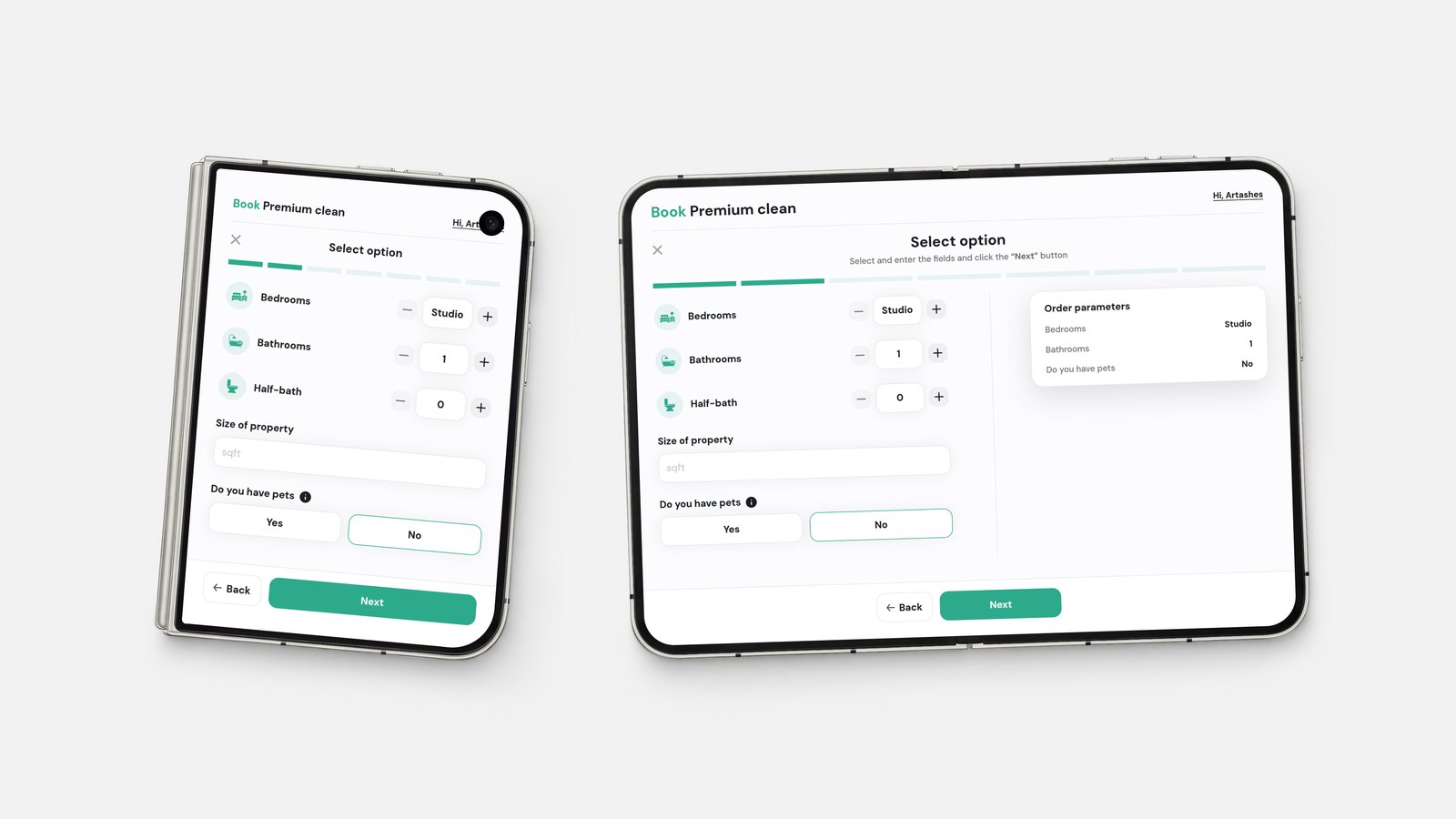
On a phone the booking steps stack in a single column. Open it wider, on an unfolded phone or a laptop, and the order summary moves into its own column next to the step.
A few things we learned picking themes
The fastest way to a good result is to steal from your own website. Take the main button color from your site and use it as your primary, and you're most of the way there.
If your logo is busy, go with Minimal cards. If you have one strong brand color, try Brand and let that color carry the page. And before you settle on a dark theme, flip through it in the preview. Midnight and Forest look great on a phone at night, but it's worth seeing with your own logo first.
Where Allclean fits
Allclean handles online booking, scheduling, payments and the customer portal for cleaning companies, and the booking page is the part your customers actually touch. If a lot of your bookings still start with a phone call, Kelly can answer the ones you miss and book them into this same page. For keeping those customers around, see turning one-time cleanings into recurring clients and why overbooking happens and how to fix it.
You can set up your own branded booking page with a free Allclean account.
FAQ
Customize Your Cleaning Company Booking Page | Allclean
Everything you need to know.
Can I use my own brand colors on my cleaning company's booking page?
Does the booking page support a dark theme?
Can I see the changes before customers do?
Can I go back to the original look?


